
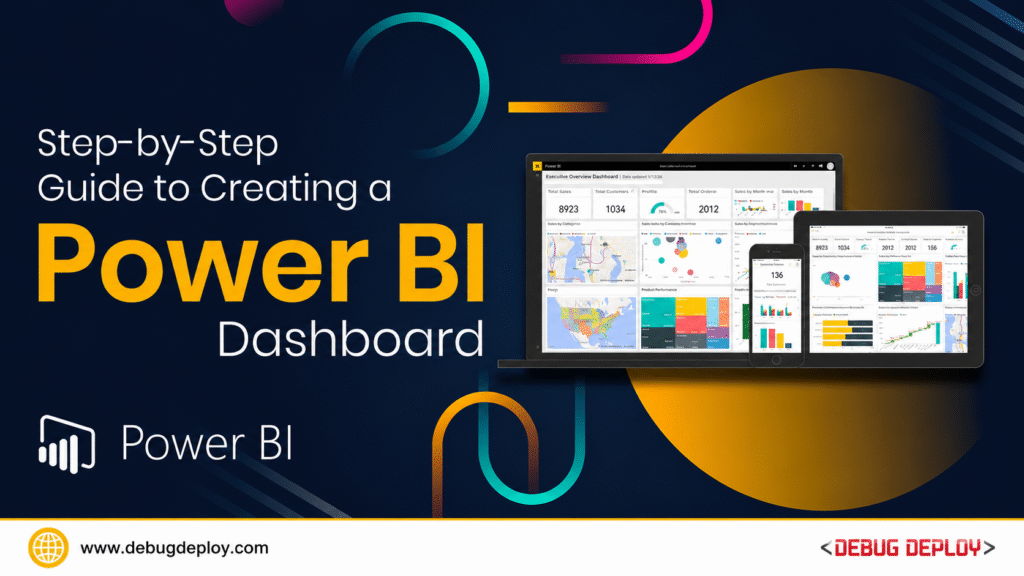
One of the most important skills for newcomers to the field of data analytics and business intelligence in 2026 is creating a dashboard in Power BI. Businesses may use Power BI dashboards to convert unprocessed data into visual insights that facilitate quicker and more intelligent decision-making. Dashboards use charts, KPIs, and interactive reports to make information easier to understand, whether you are reviewing sales, financial, marketing, or operational data.
The best method for novices to grasp data visualization, data modeling, and reporting ideas is to learn how to create a Power BI dashboard step-by-step. This tutorial provides a clear and useful explanation of the entire procedure.
What Is a Power BI Dashboard?
A Power BI dashboard is a visual representation of data that combines charts, graphs, KPIs, tables, and filters into a single interactive report. Dashboards help users monitor performance, identify trends, and analyze important business metrics in real time.
Instead of reading raw spreadsheets, businesses use dashboards to simplify complex data and improve decision-making.
Step 1: Install Power BI Desktop
The first step is downloading and installing Power BI Desktop on your system. Power BI Desktop is the main tool used for creating reports and dashboards.
Once installed, open the application and explore the interface. The main sections include:
Report View
Data View
Model View
Visualization Pane
Fields Pane
Understanding the interface makes dashboard building easier.
Step 2: Import Your Data
After opening Power BI, the next step is importing data. Power BI supports multiple data sources such as:
Excel files
CSV files
SQL databases
Google Analytics
SharePoint
Web APIs
Cloud platforms
To import data:
Click Home → Get Data
Select your data source
Load the dataset into Power BI
For beginners, Excel datasets are the easiest option to start with.
Step 3: Clean and Transform Data
Raw data is often incomplete or messy. Before building visuals, data should be cleaned using Power Query Editor.
Common data cleaning tasks include:
Removing duplicates
Handling blank values
Changing data types
Renaming columns
Splitting or merging columns
Filtering unnecessary rows
Clean data improves dashboard accuracy and performance.
Step 4: Create Relationships Between Tables
If your project uses multiple tables, you need to create relationships between them.
For example:
Sales table connected to Customer table
Product table connected to Orders table
Go to Model View and connect related fields. Proper relationships are essential for accurate analysis and reporting.
Step 5: Create Basic Visualizations
Now comes the most exciting part — creating visuals.
Power BI offers many visualization types such as:
Bar charts
Line charts
Pie charts
Tables
Maps
KPI cards
Slicers
To create a chart:
Select a visualization type
Drag fields into the visualization area
Customize the chart
For example, you can create:
Sales by region
Monthly revenue trends
Product-wise profit analysis
Visualizations help transform raw numbers into meaningful insights.
Step 6: Add KPIs and Cards
KPIs (Key Performance Indicators) are important business metrics displayed on dashboards.
Examples include:
Total Sales
Profit Margin
Number of Customers
Revenue Growth
Conversion Rate
You can use Card Visuals in Power BI to highlight important metrics clearly.
KPIs make dashboards more professional and business-focused.
Step 7: Use Filters and Slicers
Filters and slicers make dashboards interactive.
Users can filter reports by:
Date
Region
Product
Category
Customer segment
Slicers improve user experience because viewers can explore data dynamically without changing the report structure.
Interactive dashboards are one of the biggest strengths of Power BI.
Step 8: Create DAX Measures
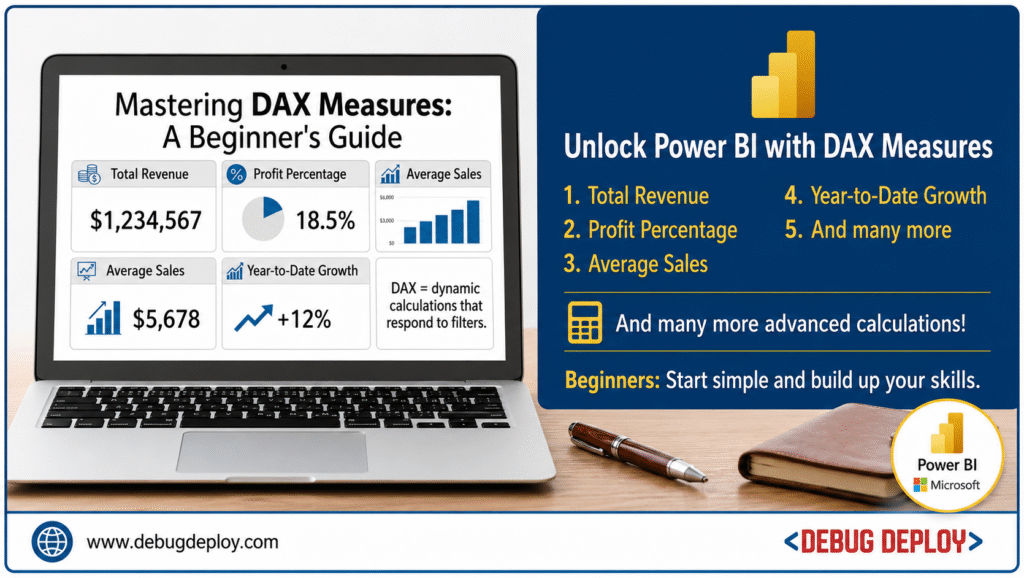
DAX (Data Analysis Expressions) is used to create calculations and advanced logic in Power BI.
Examples of DAX measures include:
Total Revenue
Profit Percentage
Average Sales
Year-to-Date Growth
DAX allows developers to create dynamic calculations that respond to filters and user interactions.
Beginners should start with simple measures before moving to advanced formulas.
Step 9: Design the Dashboard Layout
Good dashboard design is extremely important. A cluttered dashboard can confuse users.
Best practices include:
Keep layouts clean and simple
Use consistent colors
Avoid too many visuals on one page
Highlight important KPIs at the top
Group related visuals together
A well-designed dashboard improves readability and user experience.
Step 10: Add Interactivity and Drill-Through
Power BI allows users to drill deeper into data.
For example:
Clicking on a sales region can show detailed product sales
Clicking on a department can display employee performance
This makes dashboards more interactive and useful for business analysis.
Step 11: Publish the Dashboard
Once the dashboard is complete, publish it to Power BI Service.
Steps:
Click Publish
Login to your Power BI account
Upload the report
Publishing allows teams and organizations to access dashboards online.
Step 12: Share and Collaborate
After publishing, dashboards can be shared with teams, managers, or clients.
Power BI supports:
Cloud sharing
Scheduled refresh
Mobile access
Collaboration features
This makes reporting more efficient across organizations.
Common Mistakes Beginners Should Avoid
Many beginners focus only on visuals and ignore data quality. Some common mistakes include:
Using too many charts
Ignoring data cleaning
Building dashboards without clear goals
Using inconsistent colors
Writing overly complex DAX formulas
Keeping dashboards simple and business-focused is important.
Tips to Build Better Dashboards
Understand the business problem first
Focus on meaningful KPIs
Use clean and structured datasets
Practice data storytelling
Learn basic DAX regularly
Optimize dashboard performance
Small improvements in design and analysis can make dashboards far more professional.
Why Power BI Dashboard Skills Matter in 2026
Businesses today rely heavily on dashboards for real-time analytics and decision-making. Industries such as finance, healthcare, retail, logistics, marketing, and education use Power BI dashboards extensively.
Learning dashboard development helps beginners:
Improve analytical thinking
Understand business intelligence concepts
Build job-ready skills
Create professional portfolios
Power BI remains one of the most in-demand BI tools globally.
Conclusion
One of the greatest ways to begin a career in data analytics and business intelligence is to learn how to create a dashboard in Power BI. Beginners can learn data cleansing, visualization, DAX, modeling, and reporting in a useful way by taking a step-by-step approach. Over time, confidence and technical proficiency will increase with regular practice on real-world assignments. Power BI dashboard development will continue to be a highly important and in-demand skill in 2026 as businesses continue to rely on data-driven decisions.
Want to Learn Power BI Dashboard Development?
Get trained by a Microsoft Certified Trainer (MCT) and master the skills needed to build professional Power BI dashboards for real-world business reporting.
Recommended Certification Program:
PL-300T00-A: Microsoft Power BI Data Analyst
✅ Live Instructor-Led Training
✅ Dashboard Design Best Practices
✅ Power Query Data Transformation
✅ DAX Functions & Measures Training
✅ Data Modeling & Relationships
✅ Interactive Reports & Visualization Techniques
✅ Certification Exam Guidance
📧 Email: trainings@debugdeploy.com
📱 WhatsApp: Contact us for quick assistance
Start building professional Power BI dashboards and accelerate your Business Intelligence career today.