
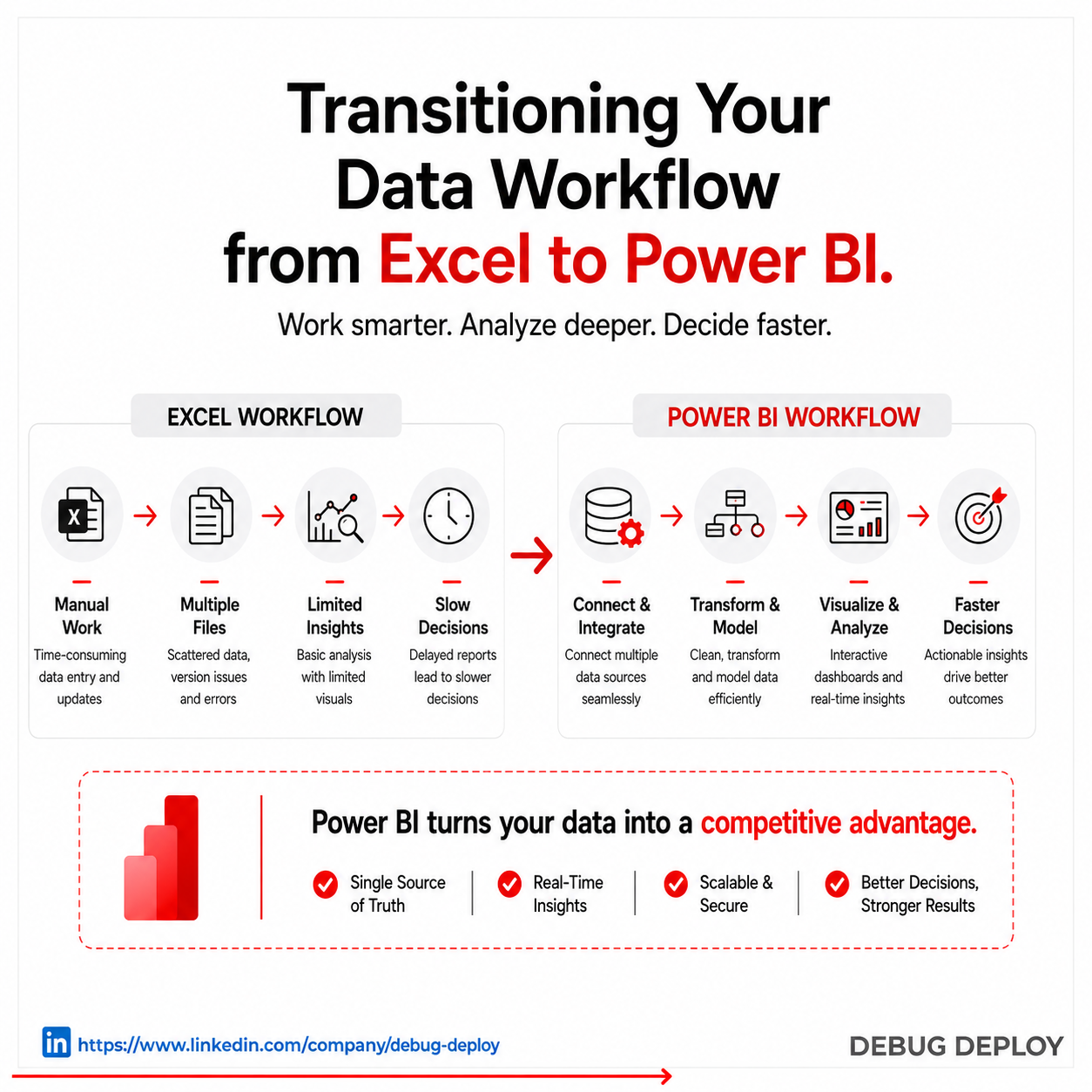
For years, Excel has been the foundation of business reporting, budgeting, forecasting, and day-to-day data management. It remains one of the most widely used tools for handling spreadsheets, creating formulas, and organizing information. For individuals and small teams, Excel often works well.
However, as businesses grow, data becomes more complex. Teams begin managing larger datasets, multiple sources of information, recurring reports, and increasing demands for real-time insights. At this stage, relying only on spreadsheets can slow productivity, create version control issues, and limit decision-making speed.
This is where Power BI becomes the next logical step. Transitioning your data workflow from Excel to Power BI allows businesses to move beyond static spreadsheets and into a modern environment built for visualization, automation, collaboration, and advanced analytics.
Why Businesses Outgrow Excel
- Excel is a powerful tool for spreadsheets and calculations, but it was not originally built as a full-scale business intelligence platform for growing organizations.
- As reporting needs increase, large Excel files often become slower, heavier, and more difficult to manage efficiently.
- Multiple versions of the same report are frequently shared through email, creating confusion and version control problems across teams.
- Manual updates, repetitive data entry, and formula maintenance consume valuable time that could be used for analysis and decision-making.
- Combining data from different systems such as CRM tools, finance software, and databases becomes increasingly complex in Excel.
The Difference Between Excel and Power BI
Excel is excellent for calculations, quick analysis, and flexible spreadsheet tasks. Power BI is designed to analyze larger datasets, connect multiple sources, and present insights through interactive dashboards.
Instead of sending monthly spreadsheet files, businesses can create live dashboards that refresh automatically. Instead of manually combining reports from finance, sales, and operations, Power BI integrates those systems into one source of truth.
Excel helps manage data manually. Power BI helps scale data decision-making strategically.
Why Transitioning Makes Sense Now
Modern organizations need faster answers from their data. Leadership teams want real-time visibility into performance. Departments need shared metrics. Remote teams need cloud access. Decision-makers need insights without waiting for updated spreadsheets.
Power BI enables these outcomes through automated reporting, secure sharing, and self-service analytics.
As companies become more data-driven, the move from spreadsheet dependency to business intelligence becomes less of an upgrade and more of a necessity.
Start With Existing Excel Data
One of the biggest advantages of Power BI is that businesses do not need to abandon Excel completely. Existing spreadsheets can be used as a starting point.
Power BI connects directly to Excel files and imports structured data into dashboards and reports. This makes the transition smoother because teams can continue using familiar data sources while gaining better reporting capabilities.
Instead of rebuilding everything from scratch, organizations can modernize what they already have.
Automate Repetitive Reporting
Many Excel workflows depend on repetitive manual tasks such as copying data, updating formulas, refreshing charts, and distributing reports.
Power BI automates much of this process. Reports can refresh on scheduled intervals, dashboards update automatically, and users always access the latest version online.
This saves time, reduces human error, and improves reporting consistency across departments.
Teams spend less time preparing reports and more time acting on insights.
Build Interactive Dashboards Instead of Static Sheets
Excel reports are often static snapshots of a moment in time. Power BI transforms reporting into an interactive experience.
Users can filter data by region, department, product line, date range, or customer segment instantly. Executives can drill into trends without requesting separate reports.
This level of exploration allows faster understanding and stronger decision-making.
Instead of reading rows of data, teams can see the story behind performance.
Connect Multiple Data Sources
As organizations grow, data rarely lives in one spreadsheet. Information may come from accounting tools, CRM systems, websites, cloud apps, databases, and internal platforms.
Excel workflows often require manual exports and merges to combine these sources.
Power BI connects multiple systems directly and consolidates them into unified dashboards. This creates more accurate reporting and eliminates fragmented views of business performance.
With one connected environment, teams trust the numbers they use.
Improve Collaboration and Version Control
One common challenge with Excel reporting is managing versions. Files are shared through email, renamed repeatedly, and edited by multiple people.
Power BI replaces this with centralized dashboards stored in the cloud. Users access one live version instead of multiple outdated copies.
Permissions can also be managed securely so each department sees relevant data.
This improves collaboration while reducing confusion.
Use Advanced Analytics Without Complexity
Power BI includes capabilities beyond traditional spreadsheets. Businesses can use forecasting, trend analysis, anomaly detection, and AI-powered insights to understand performance more deeply.
These features help organizations move beyond historical reporting and toward predictive decision-making.
For companies looking to grow intelligently, this creates significant long-term value.
Best Approach for a Smooth Transition
The most effective migration from Excel to Power BI usually happens in phases.
Start with high-value reports that consume the most manual effort. Identify dashboards leadership needs regularly. Standardize messy spreadsheet data before importing it. Train teams on how to use filters, dashboards, and shared reports.
As confidence grows, additional workflows can be moved into Power BI gradually.
This phased approach reduces disruption while maximizing adoption.
When Excel Still Matters
Transitioning to Power BI does not mean eliminating Excel entirely.
Excel remains useful for quick calculations, ad hoc modeling, personal analysis, and spreadsheet-based tasks. Many businesses use both tools together.
Excel continues to support detailed data preparation, while Power BI becomes the platform for reporting, dashboards, and decision intelligence.
Used together, they create a stronger analytics ecosystem.
People Also Ask(FAQs)
Is Power BI better than Excel?
Power BI is better for data visualization, automation, and handling large datasets, while Excel is ideal for basic data analysis.
Can Power BI replace Excel completely?
No, Power BI complements Excel rather than replacing it. Both tools serve different purposes.
How long does it take to learn Power BI?
It typically takes a few weeks to learn the basics, but mastering advanced features may take a few months.
Do I need coding skills for Power BI?
No, coding is not required, but knowledge of DAX can be beneficial.
Best Practices for a Smooth Transition
Tips to Follow
- Start with simple reports
- Keep dashboards clean and user-friendly
- Maintain data consistency
- Use templates for faster development
- Continuously optimize reports
Related Reports
- How Power BI Drives Smarter Data-Driven Decisions
- What Is Power BI? A Complete Beginner’s Guide (2026)
Conclusion
Transitioning from Excel to Power BI can significantly enhance your organization’s data capabilities. With better visualization, automation, and real-time insights, Power BI empowers teams to make smarter decisions. By following a structured approach, you can ensure a smooth and successful transition while maximizing the value of your data.
Want to Get Certified in Power BI?
Get trained by a Microsoft Certified Trainer (MCT) and upgrade your reporting skills from Excel to modern business intelligence tools.
Recommended certification program:
PL-300T00-A: Microsoft Power BI Data Analyst
✅ Live Instructor-Led Training
✅ Hands-On Power BI Labs
✅ Excel to Power BI Migration Guidance
✅ Power Query, DAX & Data Modeling
✅ Interactive Dashboards & Automation
✅ Certification Exam Guidance
📧 Email us: trainings@debugdeploy.com
📱 WhatsApp us for quick assistance
Start your Power BI certification journey today and transform your data workflow beyond Excel!