
Introduction
You’ve undoubtedly come across untidy data if you’ve ever worked with Excel spreadsheets, CSV files, or company databases. Common problems that make analysis challenging include duplicate entries, blank cells, inconsistent date formats, spelling errors, unnecessary spaces, and improper data types. To guarantee reliable insights, this data must be cleaned before reports or dashboards are created.
Fortunately, data preparation is made easier by Microsoft Power BI’s robust built-in tool, Power Query. Power Query allows you to automate cleaning and transformation chores so you don’t have to manually change spreadsheets every time new data comes in. Power BI automatically performs the transformation steps you’ve created each time the dataset is refreshed.
Whether you’re a beginner learning Power BI or a data analyst working with large datasets, mastering Power Query will save countless hours and significantly improve the quality of your reports.
What Is a Power Query?
The data transformation engine included with Power BI Desktop is called Power Query. Consider it the workshop where unstructured, raw data gets transformed into information that is ready for analysis. Power Query records each alteration you perform instead than altering the underlying data source. This implies that anytime your data is updated, the same cleaning procedure can be used automatically.
Let’s take an example where your business gets a sales report every Monday. You do those activities once in Power Query rather than manually eliminating duplicate records, fixing dates, and eliminating superfluous columns every week. The method is quicker and more dependable because the same procedures are automatically followed in each subsequent refresh.
Why Cleaning Data Matters
While many novices are anxious to start building dashboards right away, seasoned data analysts understand that a report’s quality is solely dependent on the quality of its data. If a visualization is built on erroneous or contradictory data, even the most appealing one loses its significance.
Imagine a client database where a single customer occurs several times with slightly different spellings. If this data isn’t cleaned, Power BI can count them as distinct clients, producing inaccurate business insights. In a similar vein, sales figures that are saved as text rather than numbers cannot be utilized in computations until they are formatted correctly.
Spending effort on data cleaning guarantees that decision-makers will find your reports trustworthy, accurate, and dependable.
Step 1: Import Your Data into Power Query
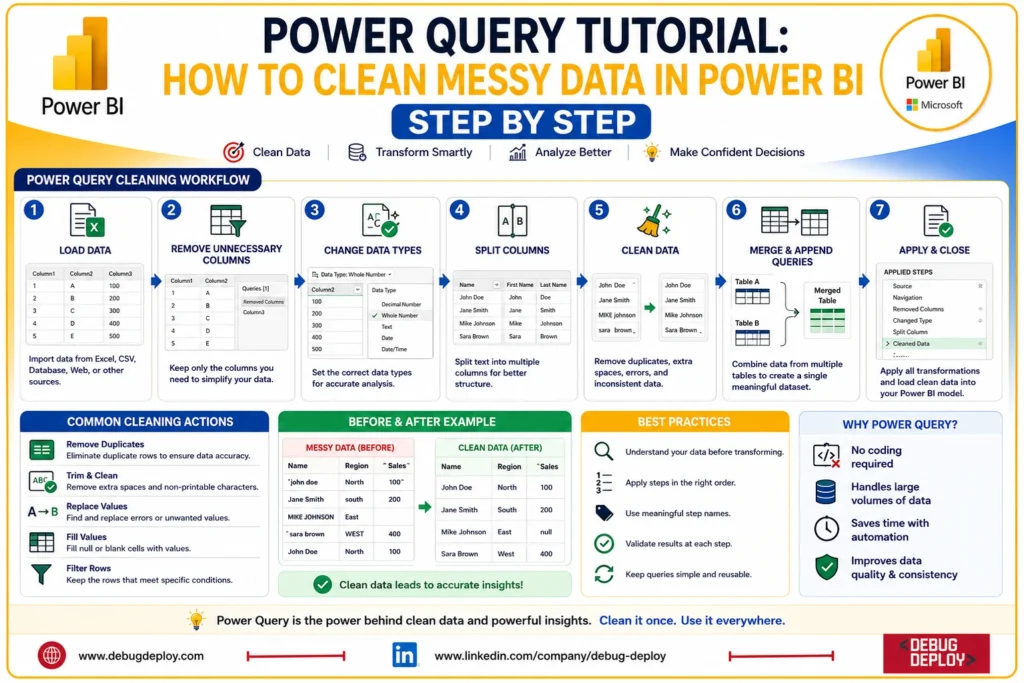
The first step is to import your dataset into Power BI Desktop. Choose Transform Data instead of Load after selecting your data source, which could be an Excel workbook, CSV file, or SQL Server database. All data preparation takes place in the Power Query Editor, which is opened by doing this.
The editor includes far more features than a spreadsheet, despite its initial appearance. Because every action you do is recorded as an applied step, you can change, eliminate, or rearrange transformations as necessary.
Step 2: Identify Problems in Your Dataset
Take a few minutes to thoroughly evaluate your data before making any adjustments. Check for duplicate records, missing values, inconsistent wording, erroneous date formats, empty rows, and superfluous columns.
For instance, you might see blank values in crucial fields, product categories written in various forms, or client names with extra spaces. Early detection of these problems enables you to determine which changes are necessary.
Additionally, Power Query offers data profiling capabilities that make it simpler to evaluate the quality of data by rapidly highlighting errors, unique values, and missing information.
Step 3: Remove Unnecessary Columns
One of the easiest ways to improve performance is by removing columns that are not needed for reporting. Many datasets include internal IDs, audit fields, comments, or temporary columns that add no analytical value.
By eliminating unnecessary information early in the process, you reduce the size of your dataset, speed up refresh times, and create a cleaner data model for reporting.
Step 4: Correct Data Types
One of the most common mistakes beginners make is ignoring data types. A sales amount stored as text cannot be summed correctly, and a date stored as plain text cannot be used for time-based analysis.
Power Query allows you to assign the correct data type with just a few clicks. Converting text into numbers, dates, or currency ensures that Power BI performs calculations accurately and improves report performance.
Step 5: Remove Duplicate Records
One of the main reasons for erroneous reports is duplicate records. Consider estimating revenue from duplicate transactions or counting the same client twice. Business decisions can be greatly impacted by such mistakes.
Eliminating duplicates is easy with Power Query. You can rapidly remove duplicate entries without altering the original dataset by selecting one or more columns and selecting the Remove Duplicates option.
Conclusion
Every successful Power BI project is built on Power Query, which is much more than just a data cleansing tool. You can produce faster dashboards, more accurate reports, and improved business insights by knowing how to turn disorganized data into organized, trustworthy information.
Power Query automates repetitious activities and guarantees consistency across all report refreshes, saving hours of laborious spreadsheet modification every time new data is received. Learning Power Query is one of the most important Power BI skills you can acquire, whether you're developing dashboards for your company or getting ready for the PL-300 certification.
Want to Master Power Query in Power BI?
Learn how to clean, transform, and prepare messy data using Power Query in Power BI. Master essential data transformation techniques such as removing duplicates, handling missing values, splitting and merging columns, changing data types, and shaping data for accurate reporting—all with guidance from a Microsoft Certified Trainer (MCT).
Recommended Microsoft Power BI Certification Programs:
PL-300: Microsoft Power BI Data Analyst
PL-900: Microsoft Power Platform Fundamentals
DP-900: Microsoft Azure Data Fundamentals
AZ-900: Microsoft Azure Fundamentals
✅ Live Instructor-Led Training
✅ Power Query Editor & Data Transformation Techniques
✅ Data Cleaning, Shaping & ETL Best Practices
✅ Power Query, DAX & Data Modeling Skills
✅ Hands-On Real-World Power BI Projects
✅ PL-300 Exam Preparation & Career Guidance
📧 Email: trainings@debugdeploy.com
📱 WhatsApp: Contact us for quick assistance
Master Power Query to clean messy data efficiently, build reliable Power BI reports, and develop the practical skills needed to succeed as a Microsoft Power BI Data Analyst.