
Introduction
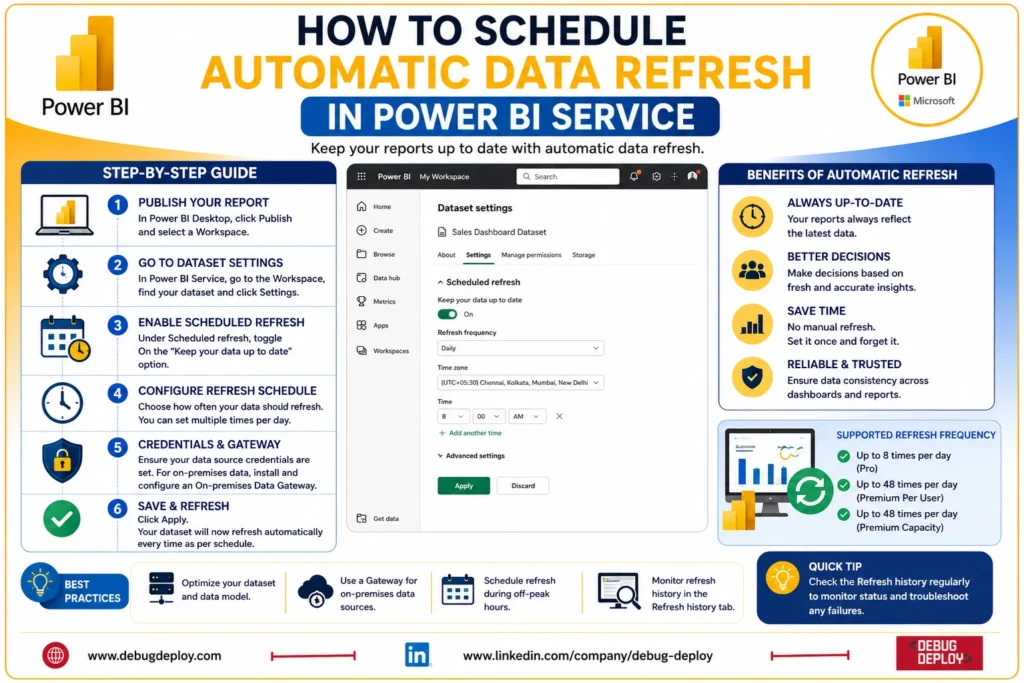
Making informed business decisions requires keeping your reports current. Your reports become less useful if your dashboards show out-of-date information but your data is always changing. Thankfully, Microsoft Power BI Service provides Automatic Data Refresh, which lets your datasets update automatically on a predetermined frequency.
Scheduled refresh guarantees that your reports always show the most recent data, whether you’re tracking sales performance, keeping an eye on inventories, evaluating marketing initiatives, or analyzing financial data. Businesses that depend on frequently updated or real-time business data may particularly benefit from this capability.
This tutorial will explain what scheduled refresh is, why it’s necessary, how it operates, and how to set up automatic data refresh in Power BI Service.
What Is Automatic Data Refresh in Power BI Service?
One of Power BI Service’s features is Automatic Data Refresh, which updates datasets at predetermined intervals. Power BI connects to the original data source, collects the most recent data, and automatically updates dashboards rather than requiring daily manual report changes.
Every report and dashboard linked to a dataset that successfully refreshes displays the most recent data.
This guarantees that users always work with reliable data while saving time and minimizing manual labor.
Why Is Scheduled Data Refresh Important?
Businesses rely on current data to make informed decisions. Without scheduled refresh, reports may contain outdated figures that can lead to incorrect conclusions.
Benefits of Automatic Data Refresh include:
Always up-to-date dashboards
Reduced manual work
Improved reporting accuracy
Faster decision-making
Better business monitoring
Increased productivity
Consistent data across teams
For organizations with multiple users accessing reports, scheduled refresh helps ensure everyone sees the same current data.
Prerequisites Before Scheduling a Refresh
Before configuring automatic refresh, ensure the following requirements are met:
Your report has been published to Power BI Service.
The dataset connects to a supported data source.
You have permission to manage the dataset.
Valid credentials are configured for the data source.
If using on-premises databases, an On-Premises Data Gateway is installed and configured.
The dataset refreshes successfully when performed manually.
Completing these prerequisites helps prevent refresh failures later.
Step-by-Step: How to Schedule Automatic Data Refresh
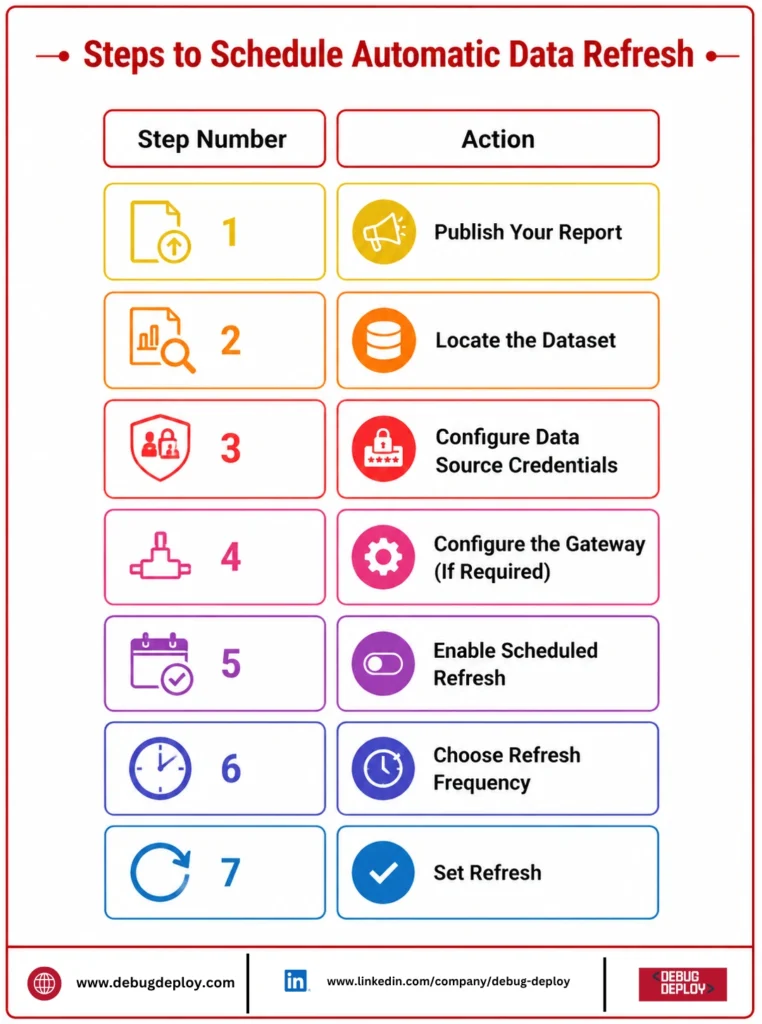
Step 1: Publish Your Report
Create your report in Power BI Desktop and publish it to your Power BI workspace.
After publishing, open Power BI Service and navigate to your workspace.
Step 2: Locate the Dataset
Inside your workspace, find the dataset associated with your report.
Select the More Options (⋯) menu beside the dataset and choose Settings.
Step 3: Configure Data Source Credentials
Under Data Source Credentials, verify that all connections are authenticated.
If credentials have expired or changed, update them before enabling scheduled refresh.
Incorrect credentials are one of the most common reasons for refresh failures.
Step 4: Configure the Gateway (If Required)
If your data comes from an on-premises SQL Server, Excel file, or another local data source, configure an On-Premises Data Gateway.
Power BI uses the gateway to securely communicate with your local data while keeping it behind your organization’s firewall.
Cloud-based data sources generally do not require a gateway.
Step 5: Enable Scheduled Refresh
Scroll to the Scheduled Refresh section.
Turn Keep your data up to date to On.
This activates automatic dataset refresh.
Step 6: Choose Refresh Frequency
Power BI allows different refresh frequencies depending on your license.
Common scheduling options include:
Daily
Multiple times per day
Weekly
Select the option that best fits your reporting requirements.
Step 7: Set Refresh Times
Choose one or more refresh times during the day.
For example:
8:00 AM
12:00 PM
4:00 PM
8:00 PM
Organizations often schedule refreshes before business hours so employees start the day with current reports.
Step 8: Save Your Settings
After configuring your schedule, click Apply or Save.
Power BI will automatically refresh the dataset according to the selected schedule.
How to Check Refresh History
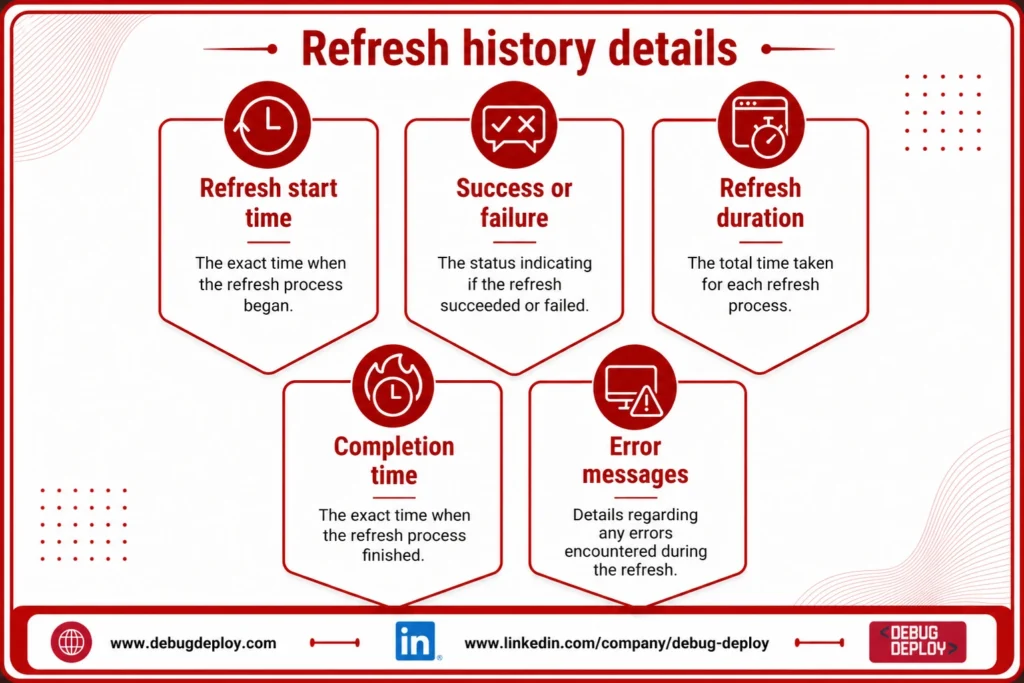
Power BI provides a refresh history that allows administrators to verify whether scheduled refreshes completed successfully.
The refresh history displays:
Refresh start time
Completion time
Success or failure status
Error messages
Duration of each refresh
Reviewing refresh history regularly helps identify connection issues before they impact business users.
Common Reasons Why Data Refresh Fails
Sometimes scheduled refresh may fail due to configuration issues.
Common causes include :
Incorrect data source credentials
Expired passwords
Gateway offline or unavailable
Data source unavailable
Network connectivity issues
Dataset size limitations
Query timeout errors
Changes to the underlying database
Most refresh issues can be resolved by updating credentials or verifying gateway connectivity.
Best Practices for Scheduled Refresh
To ensure reliable performance, follow these best practices:
Refresh only as often as necessary.
Schedule refreshes during low-traffic hours.
Keep gateway software updated.
Monitor refresh history regularly.
Remove unnecessary columns from datasets.
Optimize Power Query transformations.
Use incremental refresh for large datasets when applicable.
Verify data source credentials periodically.
Following these practices helps improve refresh speed and reliability.
Power BI Licensing and Refresh Limits
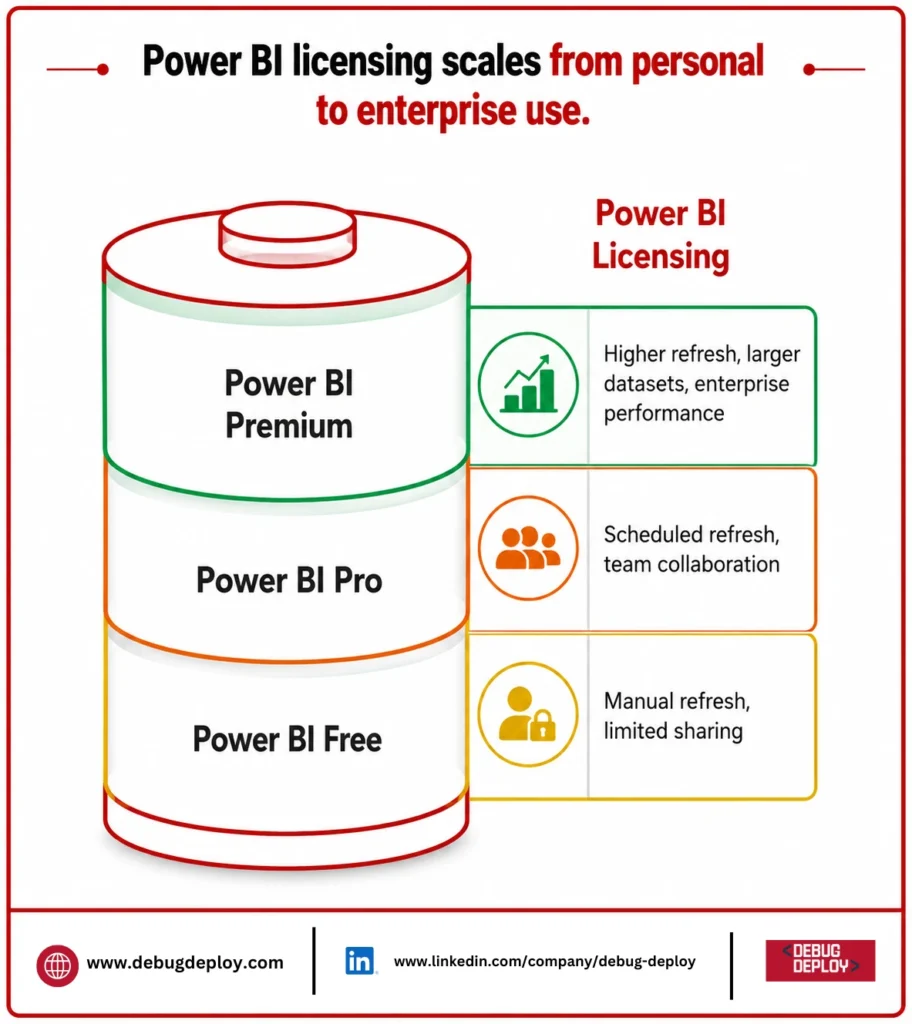
Scheduled refresh capabilities depend on your Power BI license.
Power BI Free
Manual refresh only in personal workspaces
Limited sharing capabilities
Power BI Pro
Scheduled refresh available
Multiple refreshes per day
Team collaboration features
Power BI Premium
Higher refresh frequency
Larger datasets
Enterprise-scale performance
Advanced data management features
Organizations should choose the licensing option that matches their reporting requirements.
Benefits of Automatic Data Refresh
Using scheduled refresh provides several long-term advantages:
Eliminates repetitive manual updates
Improves report reliability
Supports real-time business monitoring
Increases user confidence in reports
Enables faster operational decisions
Saves valuable administrative time
These benefits make scheduled refresh an essential feature for organizations using Power BI for business reporting.
Conclusion
Your dashboards and reports will always show the most recent business data thanks to Power BI Service’s Automatic Data Refresh feature, which eliminates the need for manual updates. Organizations can enhance reporting accuracy, optimize operations, and facilitate data-driven decision-making by setting up scheduled refresh.
Knowing how to plan automatic data refresh is an essential ability, regardless of your level of familiarity with Power BI. Scheduled refresh contributes to the development of dependable, effective, and scalable business intelligence systems when combined with appropriate gateway design, optimized datasets, and routine monitoring.
Want to Master Automatic Data Refresh in Power BI Service?
Learn how to configure scheduled data refresh, manage gateways, and keep your Power BI reports up to date with expert-led training from a Microsoft Certified Trainer (MCT). Gain practical skills to automate reporting and deliver real-time business insights.
Recommended Microsoft Power BI Certification Programs:
PL-300: Microsoft Power BI Data Analyst
PL-900: Microsoft Power Platform Fundamentals
DP-900: Microsoft Azure Data Fundamentals
AZ-900: Microsoft Azure Fundamentals
✅ Live Instructor-Led Training
✅ Power BI Service Administration & Configuration
✅ Scheduled Data Refresh & Gateway Setup
✅ Power Query, DAX & Data Modeling Skills
✅ Real-World Reporting & Automation Projects
✅ Certification Exam Preparation & Career Guidance
📧 Email: trainings@debugdeploy.com
📱 WhatsApp: Contact us for quick assistance
Master Power BI Service to automate data refresh, streamline reporting workflows, and ensure your business dashboards always display the latest insights.